
Appearance
Designs
A design is a complete look for your store. It holds the layout of every page, the shared header and footer, and the design settings such as colors and corner shapes.
You can keep several designs side by side. This lets you prepare a seasonal look, try a new layout or build a design for another store view, while the store keeps showing the current one.
The design list
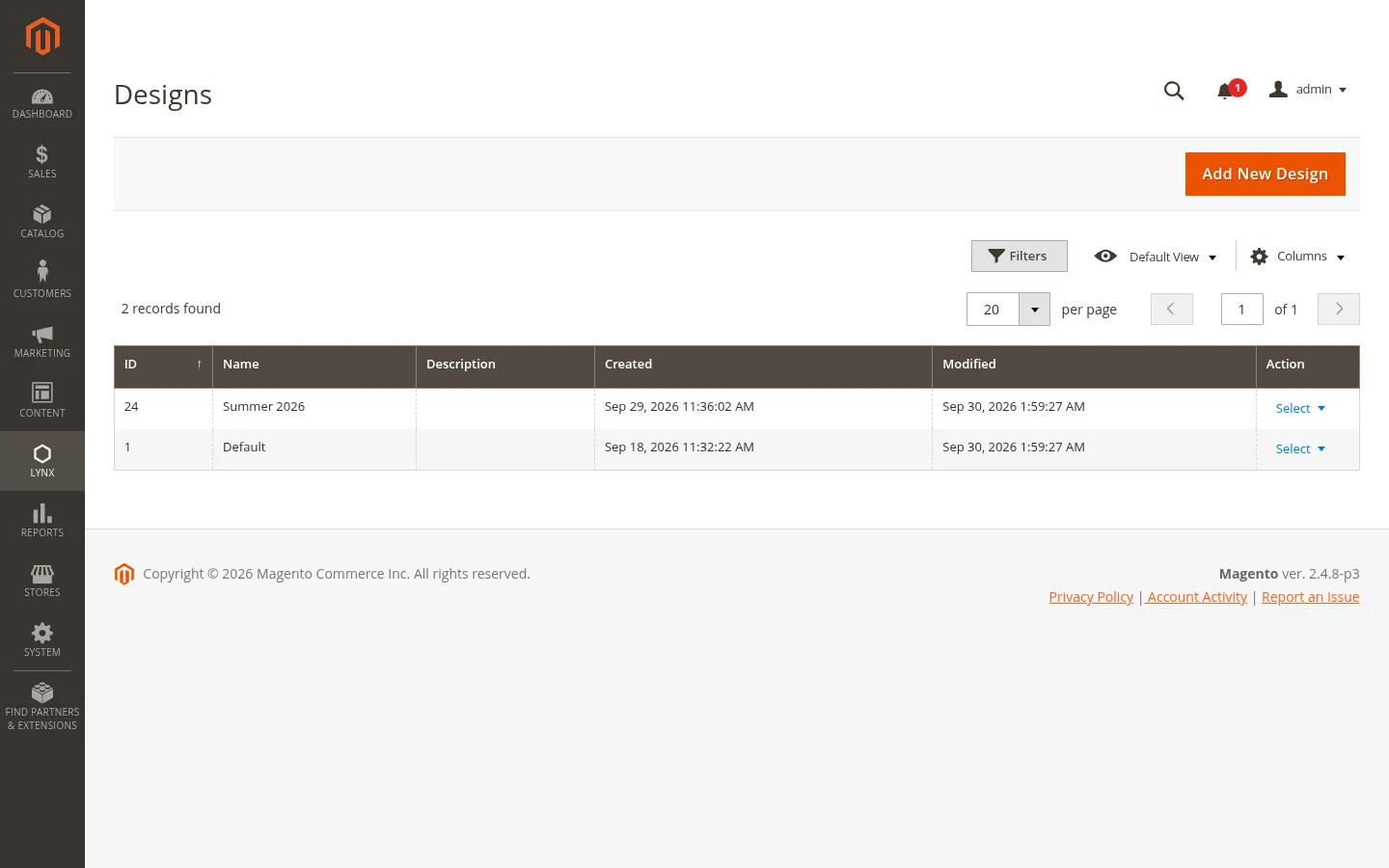
Go to Lynx › Designs to see all designs. Add New Design creates an empty design, and the Select menu of each row offers these actions:
| Action | What it does |
|---|---|
| Build | Opens the design in the editor. |
| Edit | Changes the design's name, description and parent designs. |
| Duplicate | Makes a full copy of the design, including every page and all design settings. |
| Delete | Removes the design and every page layout in it. This cannot be undone. |
The default design
Lynx installs a default design that is read-only. You can open it in the editor and try changes in the preview, but you cannot save them. Duplicate it to get a copy you can edit.
Keeping the default design untouched means you always have a clean starting point to go back to.
Parent designs
A design does not need a layout for every page. In Edit, the Parent Designs list names the designs it borrows from. When a page has no layout in this design, Lynx uses the layout from the first parent in the list that has one. Drag the rows to change the order.
This is handy for a design that only changes a few pages, such as a holiday home page. Build those pages in the new design, set your main design as its parent, and every other page keeps following the main design, including later changes to it.
Choosing which design the store shows
The design shoppers see is set in Stores › Configuration › Lynx › Design › Active Design. Like other Magento settings, it can be set for the whole installation, per website or per store view. Different store views can show different designs.
A typical workflow for a new look:
- Duplicate the design the store is using now.
- Build the new look on the copy. The live store is not affected.
- Send a shared preview to anyone who needs to approve it.
- Set the copy as the Active Design when it is ready.
If something is wrong after the switch, set the previous design back as the Active Design.
Moving pages between designs
From More tools in the editor's top bar:
- Copy page from design replaces the content of the page you are editing with the same page from another design. The header and footer of the current design stay as they are. The copy is not saved until you press Save, and Undo brings the old content back.
- Export layout downloads the page layout as a file, and Import layout loads such a file into the page. This is useful for moving a page to another Magento installation, for example from a staging site to the live store.