
Appearance
Cart and Checkout Blocks
These blocks make up the cart page, the checkout and the pages shown after an order. They work with Magento's own prices, discounts, shipping methods and payment methods, so everything you configure in Magento applies here too.
Checkout Cart
The shopping cart page: items, quantities, the order summary, the discount code and the checkout buttons.
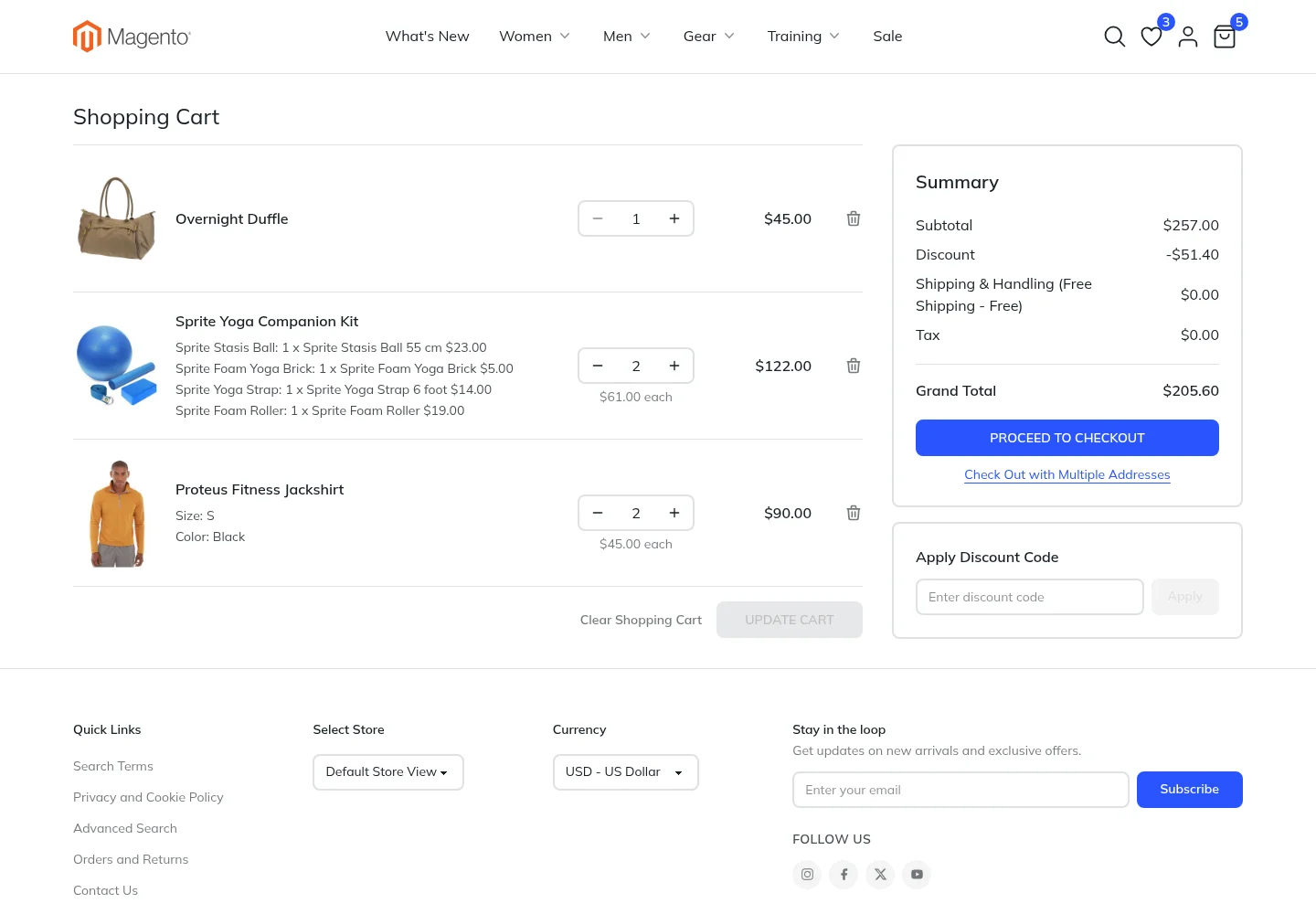
| Setting | What it does |
|---|---|
| Express Buttons Per Row | How many express payment buttons sit side by side under the checkout button. Auto fits as many as there is room for. |
| Express Buttons Gap | Space between the express payment buttons |
| Express Checkout | Drop PayPal express buttons into this slot to show them under the checkout button |
The block also follows these Magento settings:
- Items per page: long carts are split into pages, using Number of Items to Display Pager in Stores › Configuration › Sales › Checkout › Shopping Cart.
- Clear Shopping Cart: the button shows when Enable Clear Shopping Cart is on in the same section.
- Check Out with Multiple Addresses: the link shows when multishipping is enabled. Lynx hands that checkout to the fallback theme, so turn Theme Fallback on if you use it.
Checkout
The checkout page. Shipping address, shipping method and payment are shown as steps on one page, next to an order summary.
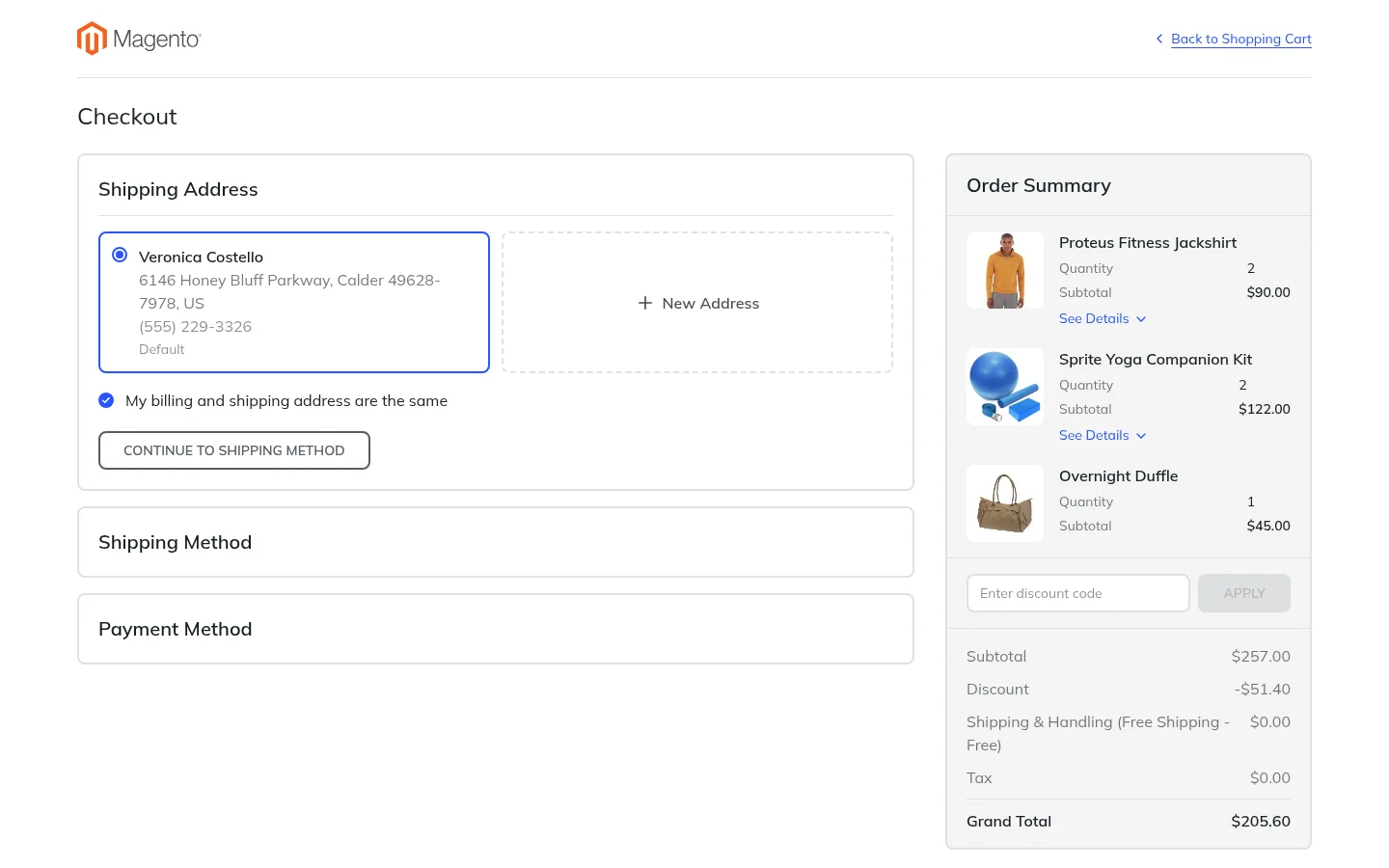
| Setting | What it does |
|---|---|
| Steps | The three step blocks: Checkout Address, Checkout Shipping Method and Checkout Payment |
| Express Checkout | Drop express payment buttons into this slot to show them above the steps |
| Express Buttons Per Row and Gap | Layout of the express payment buttons, as in the cart |
Arranging the steps
The three steps sit in the Steps slot of the Checkout block, and the checkout shows them in that order.
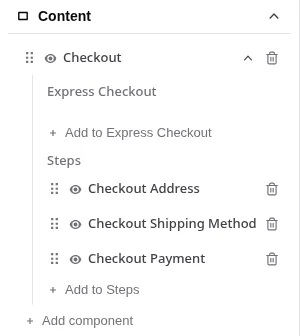
- Reorder the steps by dragging them in the outline.
- Hide a step with the eye icon.
- Express payment buttons go in the Express Checkout slot above the steps. Use Add to Express Checkout to add them.
- Only the right blocks fit. The Steps slot accepts only checkout steps and the Express Checkout slot only express payment buttons, each one once. If a step was removed, Add to Steps brings it back; steps that are already there are shown as Already added.
Keep the address before the shipping method, since shipping rates depend on the address, and keep payment last. On a cart with only virtual or downloadable products, the shipping steps leave the checkout on their own.
Checkout Address
The shipping address, the guest's email and the billing address when it is different. Customers pick from their address book; guests fill in a form.
Arranging the address fields
Double-click Checkout Address in the outline to choose which fields the address form asks for, in which order, and how wide each one is. The same fields are used for the shipping address and the billing address.
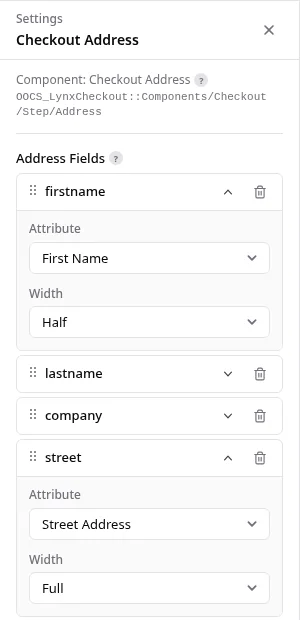
- Add a field with Add item, then pick its Attribute, such as First Name, Street Address or a custom attribute.
- Set the width: Half puts two fields side by side, Full gives the field the whole row.
- Reorder the fields by dragging them. The form shows them from top to bottom in this order.
- Remove a field with the trash icon.
Labels and whether a field is required come from Magento's customer address attributes, so they follow your store settings and translations. State and ZIP code are required or optional depending on the country the shopper picks, following Stores › Configuration › General.
To ask for something extra, such as a delivery note or a tax number, create a customer address attribute in Stores › Attributes › Customer Address, make it visible, and add it here.
WARNING
The form only shows the fields in this list. If the list is empty, the address form has no fields.
Checkout Shipping Method
The shipping rates available for the address, from the carriers you have enabled in Magento. When in-store pickup is enabled, shoppers can choose a store here.
Checkout Payment
The payment methods you have enabled in Magento, the billing address and the button that places the order.
Script protection on the payment page
The checkout locks down the scripts that run on it. Each script file comes with a fingerprint created when Lynx is built, and the browser refuses to run a file whose content does not match. A script altered on the server, on a CDN or on its way to the shopper is blocked before it can read card details.
This helps you meet requirement 6.4.3 of PCI DSS 4.0, which asks merchants to control the scripts on their payment pages. It is the Lynx counterpart of the protection Magento adds to the standard checkout, It works in current versions of Chrome, Edge and Firefox. Browsers that do not support it load the checkout as usual.
Nothing needs to be configured. After updating Lynx or rebuilding its theme, flush the cache so the checkout uses the new fingerprints; Magento's normal deployment does this for you.
Express payment buttons
Express buttons let shoppers pay with a wallet that already knows their address, skipping most of the checkout. The Express Checkout slots are empty at first: drag in the buttons you want. Each button only shows when its payment method is enabled and available for the cart, and the slot hides itself when no button is shown.
The two PayPal Express Checkout buttons work in both the cart and the checkout. The Braintree and Stripe buttons are offered on the checkout page only.
| Block | Payment provider |
|---|---|
| PayPal Express Button | PayPal Express Checkout. Button Style, Shape and Label set its look. |
| PayPal Credit Button | PayPal Credit through PayPal Express Checkout |
| Braintree PayPal Express | PayPal through Braintree |
| Braintree Pay Later Express | PayPal Pay Later through Braintree |
| Braintree PayPal Credit Express | PayPal Credit through Braintree |
| Stripe Express Wallets | Apple Pay, Google Pay, Link, PayPal, Amazon Pay and Klarna through Stripe, in one block |
The PayPal Review block is the page shoppers return to after approving a PayPal Express payment, where they confirm and place the order.
Checkout Success
The order confirmation shown after an order is placed, with the order number and links to continue.
Checkout Failure
Shown when an order could not be completed, with the order number, the payment error and a way back to the cart.